HummingBird
(Yes it’s one word)
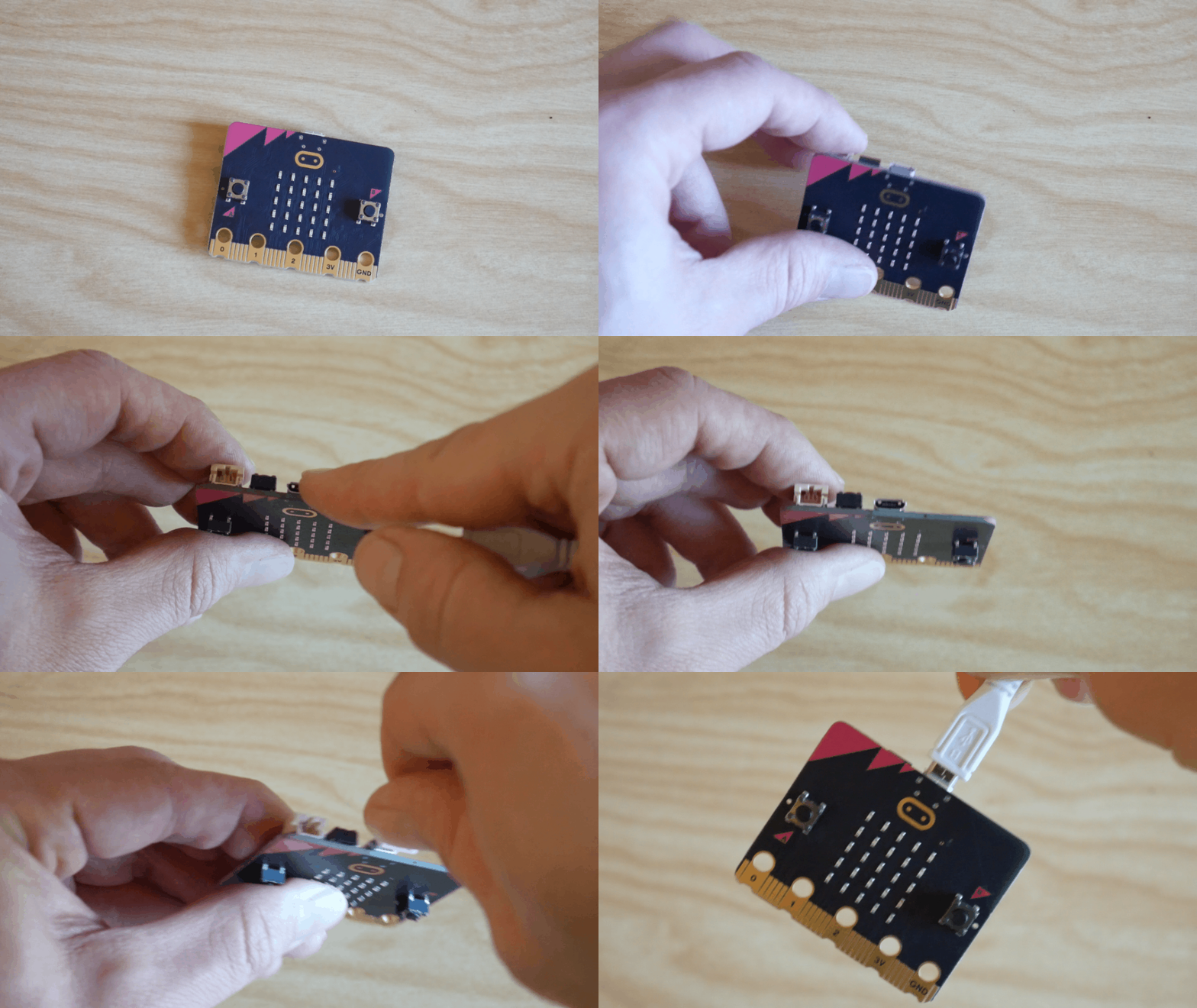
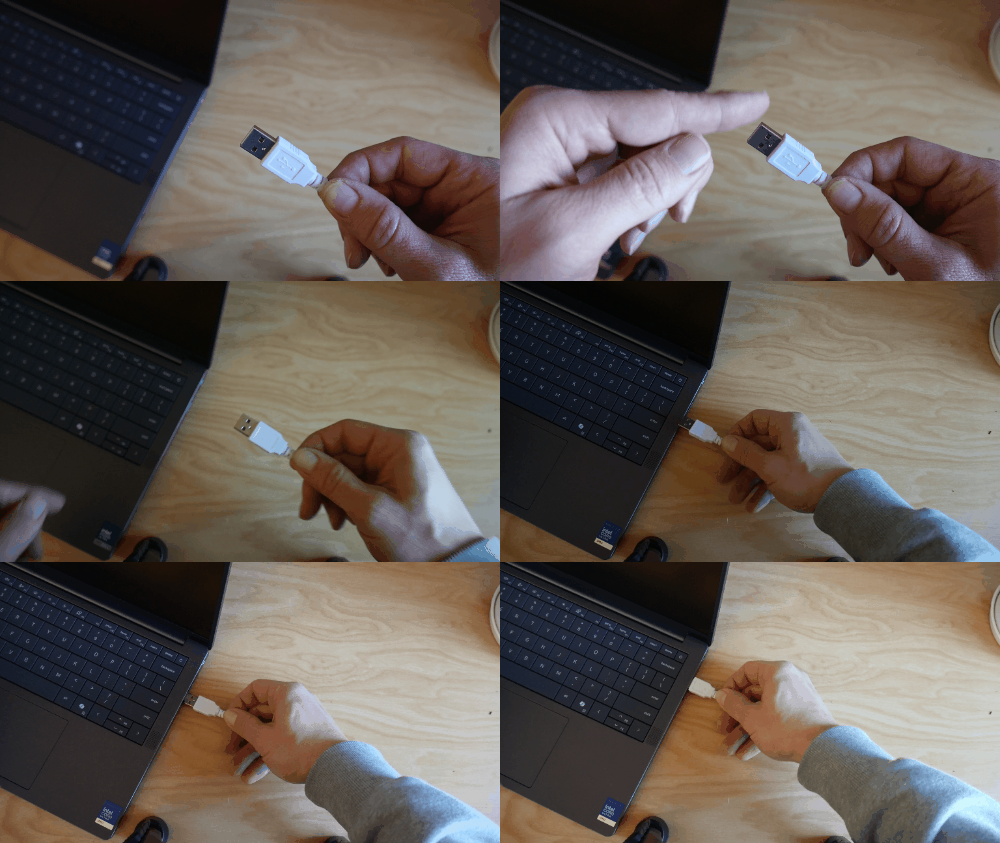
Plug your MicroBit into the small end of the usb connector
Tip: Plugging into the Microbit requires a tiny bit of force, but there should be no twisting!
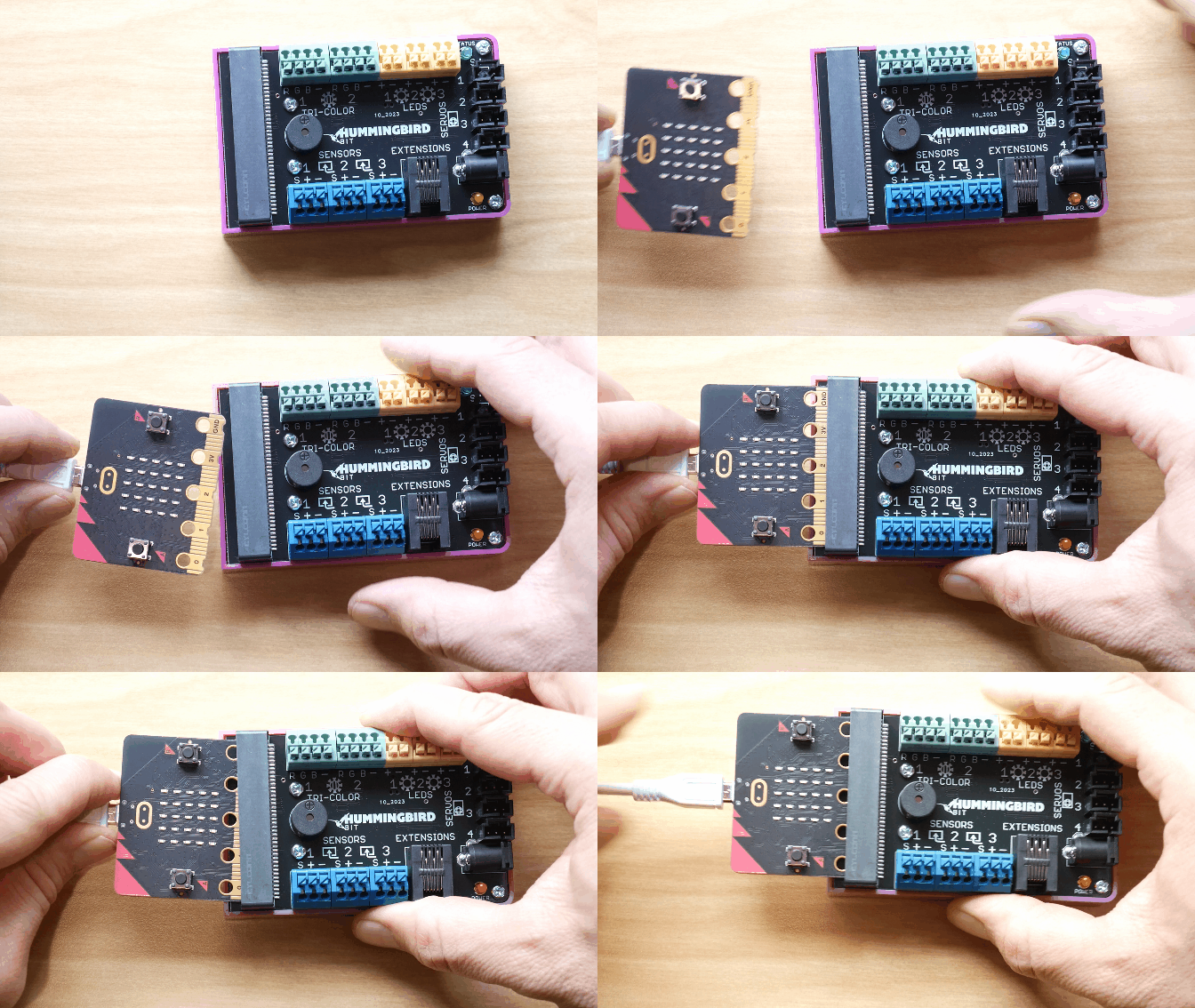
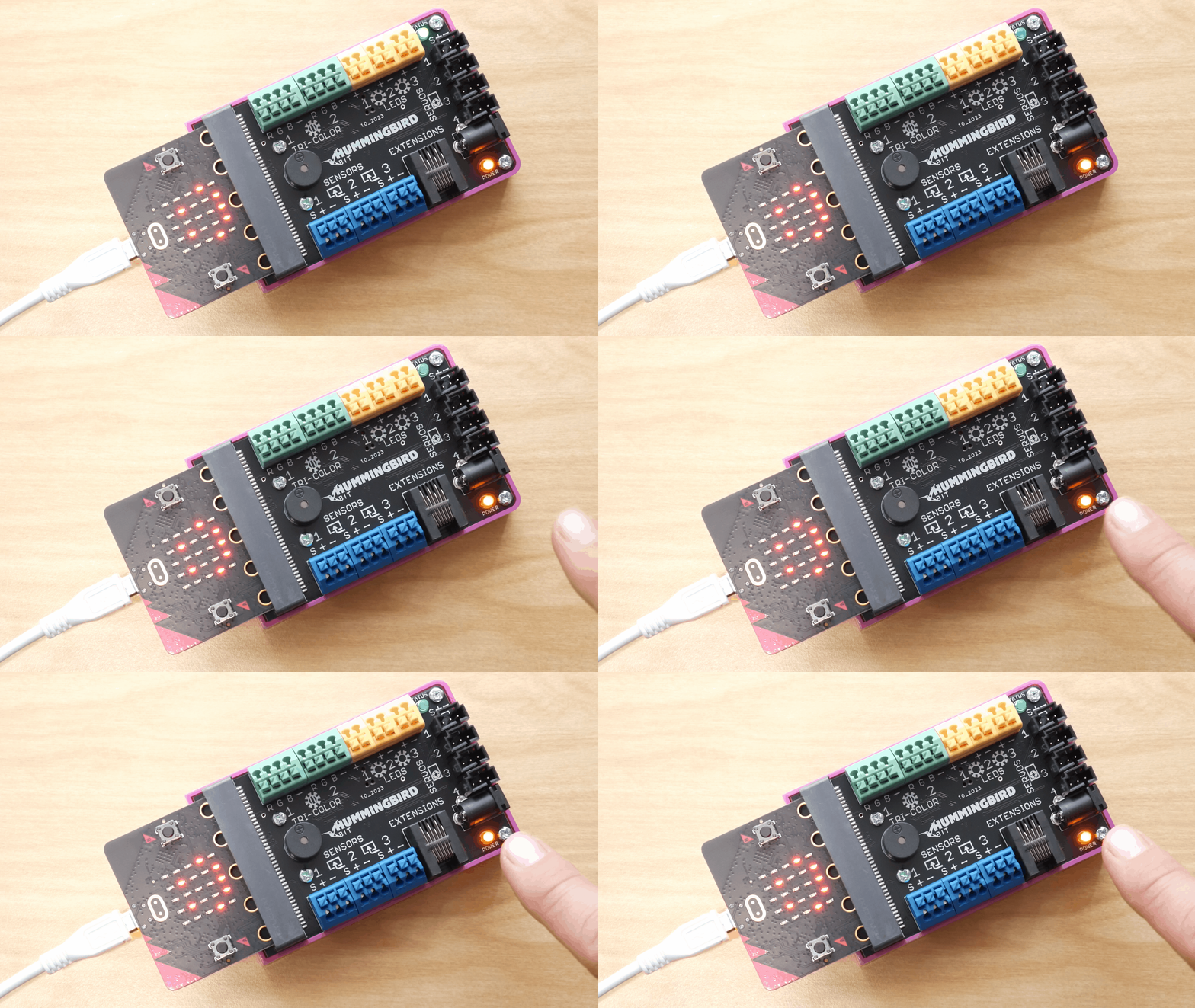
Plug your MicroBit face up into the side of the HummingBird
Make sure the MicroBit plugs into the slot all the way
Plug in the large end of the USB connector into the laptop
The HummingBird should turn on, the indicator light will turn orange
HummingBird Bits are extensions that can be added to a MicroBit which use the MakeCode environment.
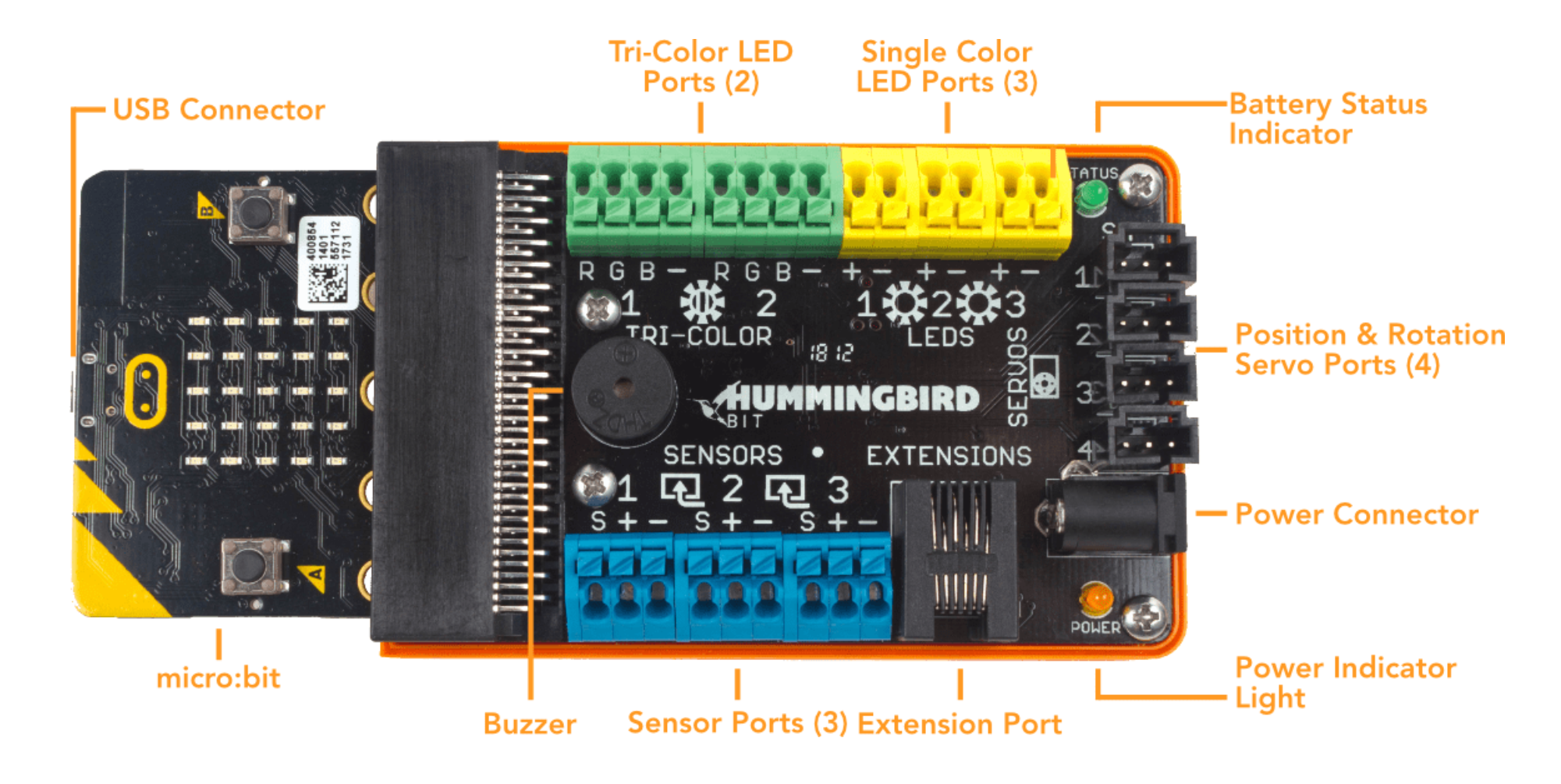
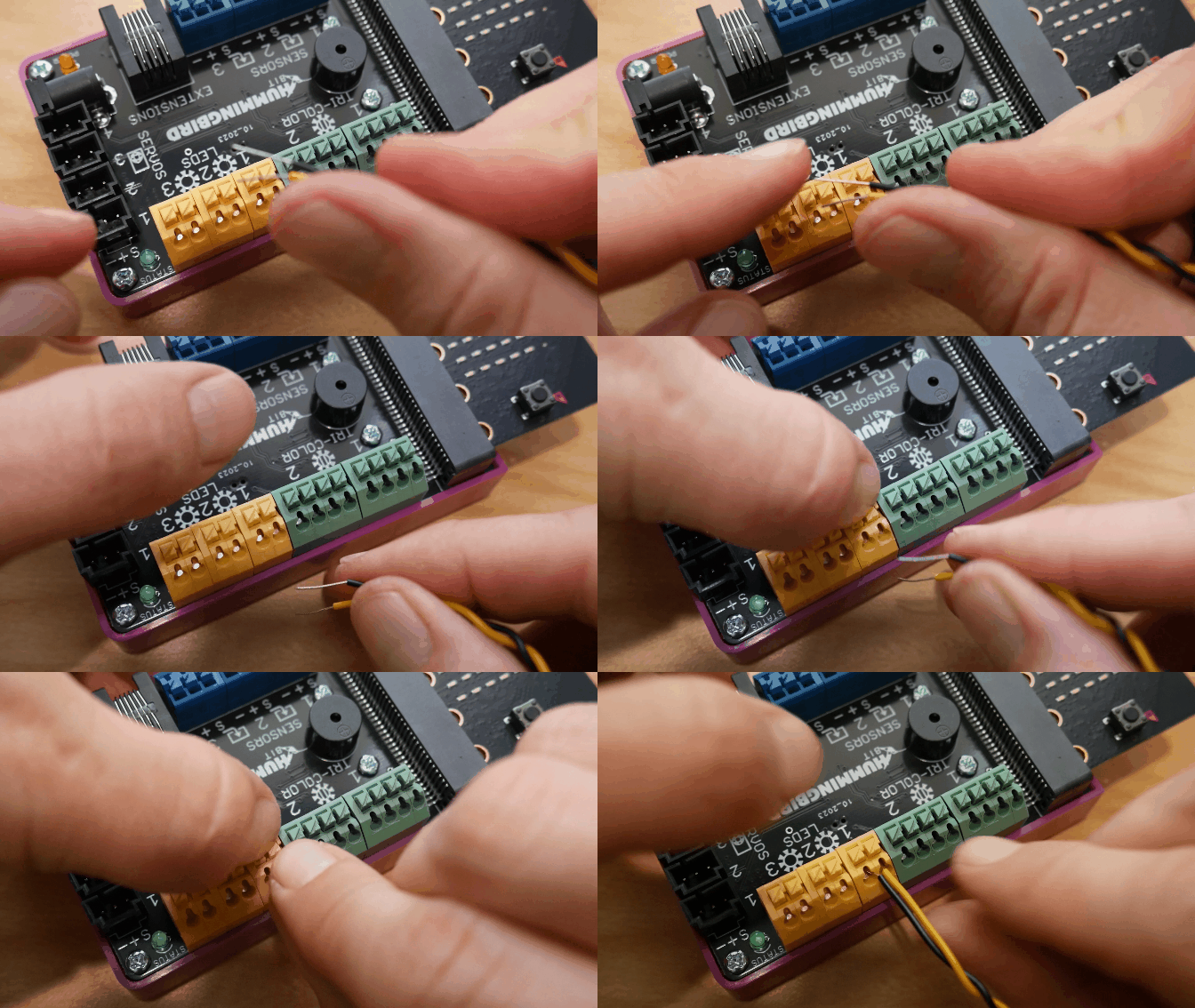
With HummingBird you have access to multiple sensors, LEDs, and servos
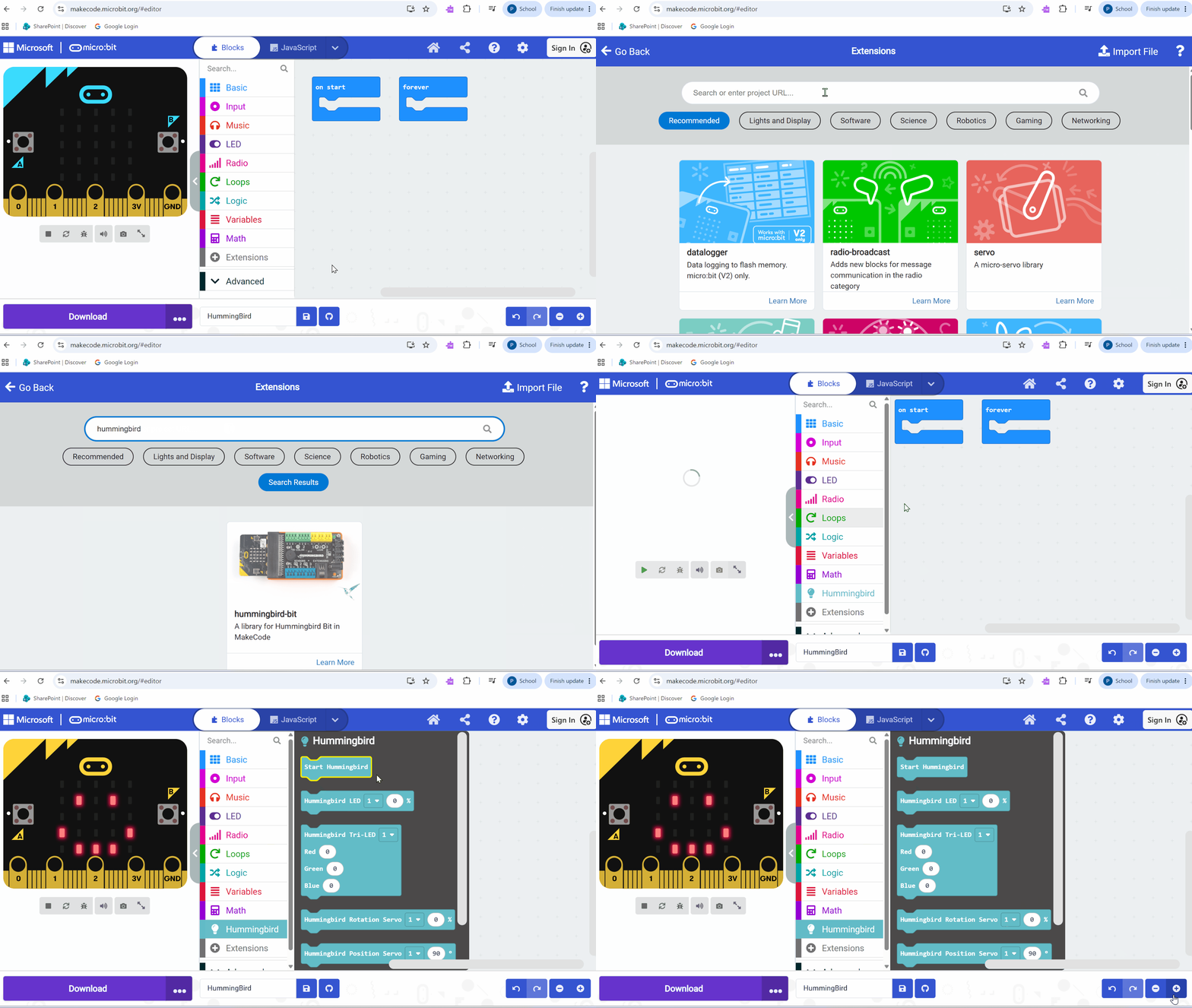
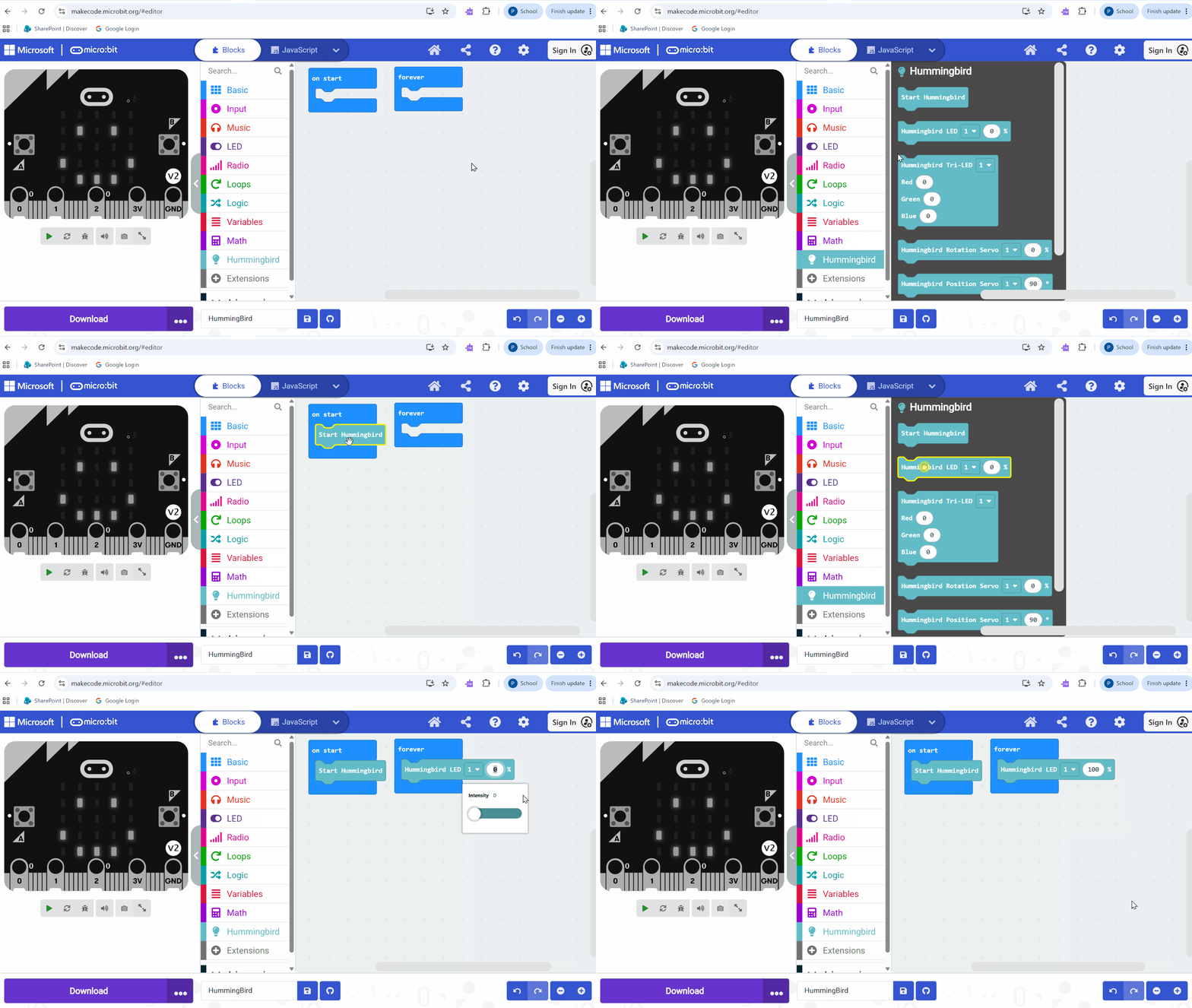
First open MakeCode to install the HummingBird extension
Click on the extensions button, it will open a search bar
Type in ‘hummingbird’ and click on the HummingBird extension to install